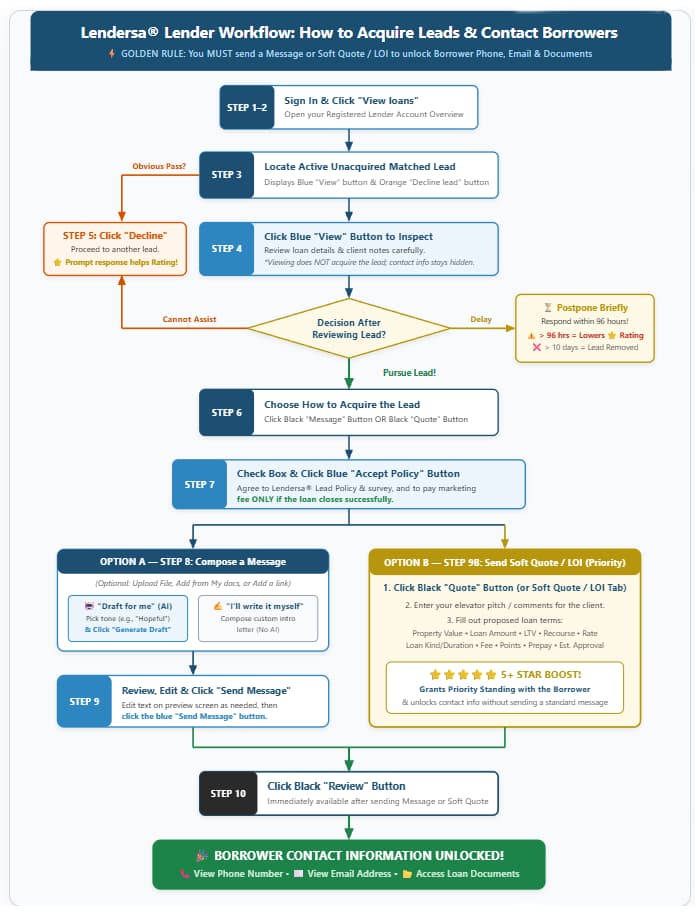
Important Rule: To unlock a borrower’s phone number, email address, and loan documents, you must acquire the lead by either sending a message or providing a soft quote / LOI.
⭐⭐⭐⭐⭐ Protect Your Star Rating: Review new leads promptly. Accepting or declining quickly improves your Star Rating, whereas leaving a lead undecided for over 96 hours lowers it. Unacquired leads are automatically removed after 10 days.
| Step-by-Step Instructions |
Lender Dashboard Visual |
|
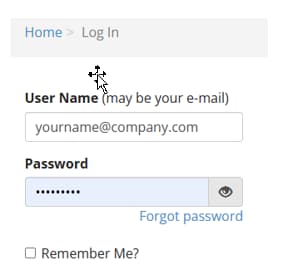
Step 1: Sign In to Your Dashboard
Log in to your Lender Dashboard using your username and password.
When a lead matches your profile, you must either Accept or Decline it.
|
|
|
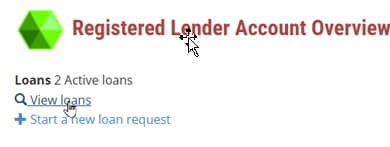
Step 2: Click "View Loans"
On your Registered Lender Account Overview, click View loans to see both previously acquired leads and new, unacquired leads that match your lead-capture profile.
|
|
|
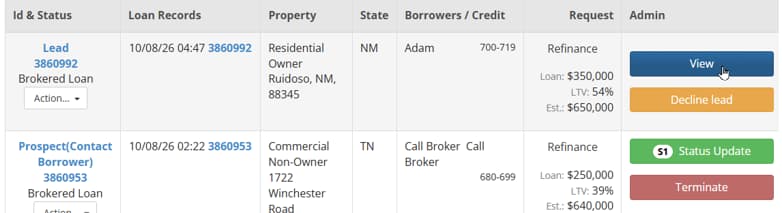
Step 3: Identify Active Unacquired Leads
Active leads that have not yet been acquired appear with a blue View button and an orange Decline lead button.
|
|
|
Step 4: Review Details & Evaluate Options
Click the blue View button to inspect the loan details and client notes. If the lead is clearly not a fit, click Decline lead; if uncertain, always click View first.
Note: Viewing a lead does not acquire it. Contact details and attachments remain hidden until you acquire the lead.
After reviewing, choose one of three options:
- Acquire the lead (via Message or Soft Quote).
- Decline the lead if you cannot assist.
- Postpone briefly, but respond within 96 hours to protect your Star Rating.
|
|
|
Step 5: Decline (If Not a Fit)
If you determine after reviewing that you cannot assist the borrower, click the orange Decline button and proceed to another lead.
⭐⭐⭐⭐⭐ Star Rating Tip: Accepting or declining quickly improves your Star Rating; leaving a lead undecided for over 96 hours lowers it. After 10 days, unacquired leads are removed from view.
|
|
|
Step 6: Acquire the Lead (Choose Method)
To acquire the lead and unlock the borrower’s phone number and email address, choose one of the two methods:
- Message: Send the borrower an introduction message (see Steps 8–9).
- Quote: Send the borrower a Soft Quote or Letter of Intent (LOI) (see Step 9B).
|
|
|
Step 7 Accept the Lendersa® Lead Policy
On the next screen, check the confirmation box to agree to the Lendersa® Lead Policy and survey, and to pay Lendersa® Inc. the applicable marketing fee only if the loan closes successfully.
Click the blue Accept Policy button to proceed.
|

|
|
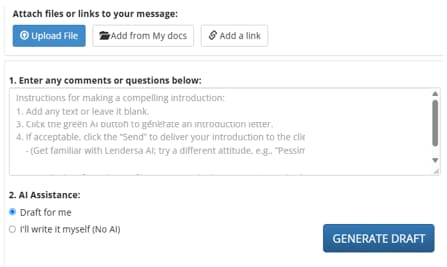
Step 8 Option A: Compose a Message
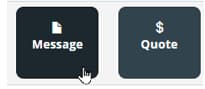
If acquiring by message, click the black Message button and choose how to create your introduction:
- Draft for me (AI): Enter any notes, select a tone/attitude, and click Generate Draft to let AI write the letter.
- I’ll write it myself (No AI): Compose your own custom message.
You can also attach files or links using the upload buttons at the top.
|
|
|
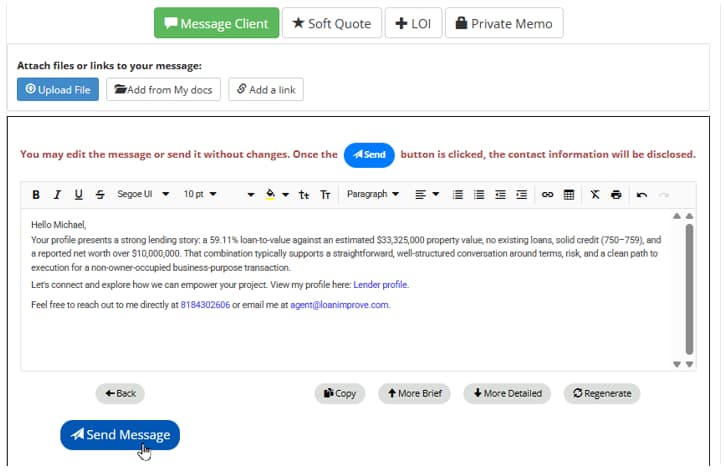
Step 9: Review, Edit & Send Message
Review and edit your message on the preview screen as needed, then click the blue Send Message button.
Once clicked, the borrower's contact information is immediately disclosed.
|
|
|
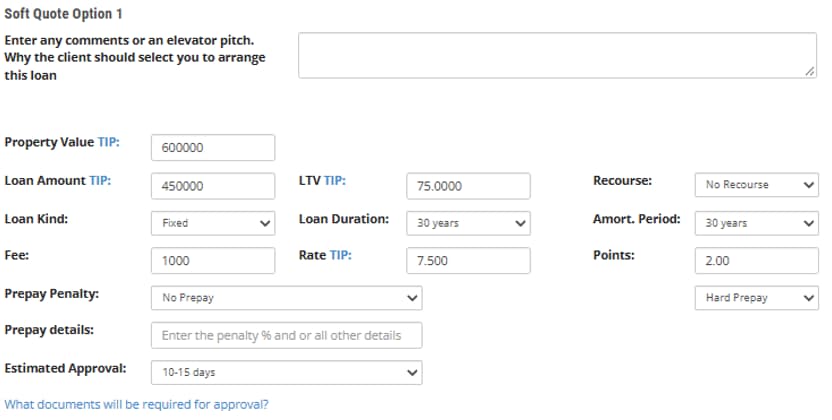
Step 9B Option B: Send a Soft Quote (Priority)
When you have enough information on the loan request, click Quote to send a soft quote.
Enter your elevator pitch and fill out the proposed loan terms (Property Value, Loan Amount, LTV, Rate, Points, Prepay Penalty, and Estimated Approval).
⭐⭐⭐⭐⭐ Pro Tip: Sending a soft quote gives you priority standing with the client and boosts your Star Rating to 5+ Stars!
|
|
|
Step 10: Unlock Phone, Email & Documents
After sending your message or soft quote, click the black Review button to view the borrower’s phone number, email address, and any attached loan documents.
|
|
Test your knowledge (Answers at the bottom of the page)
Lender Quiz: Acquiring Leads & Contacting Borrowers
Q1. A lender wants to view a matched lead's phone number, email address, and loan documents.
Which action is required to unlock these details?
○ Only
clicking the blue "View" button on the loan records table.
○ Click the
blue "View" button, then send a message or soft quote to the
borrower.
○ Send an email to Admin to request access.
Q2. How are new, unacquired leads
visually distinguished from previously acquired prospects on the Loan Records
table?
○ They display a blue "View"
button and an orange "Decline lead" button.
○ They display a green "Status
Update" button and a red "Terminate" button.
○ They display a black "Message"
button and a black "Quote" button.
Q3. A lender clicks the blue
"View" button to inspect a loan request's details, then closes the
window without clicking any other buttons. What is the status of the lead?
- ○ The lead is automatically
acquired and billed to the lender.
- ○ The lead is placed on a permanent
hold for that specific lender.
- ○ The lead remains unacquired with
its contact details hidden.
Q4. What happens if a lender leaves an
unacquired lead undecided on their dashboard for more than 96 hours?
- ○ The unacquired lead is
immediately deleted from the dashboard.
- ○ The lender's Star Rating is
lowered due to the delayed response.
- ○ The system automatically sends an
AI-generated message to the client.
Q5. After how many days is an
unacquired lead automatically removed from a lender's dashboard view?
- ○ After 4 days.
- ○ After 10 days.
- ○ After 15 days.
Q6. When checking the box to accept
the Lendersa® Lead Policy, under what condition does the lender agree to pay
the applicable marketing fee?
- ○ Only if the loan closes
successfully.
- ○ Immediately upon unlocking the
borrower's phone number.
- ○ Whenever the borrower replies to
a soft quote or LOI.
Q7. Is there a way to view the
borrower's email address and phone number without sending a message?
- ○ Yes, by submitting a soft quote
or an LOI from the lender dashboard.
- ○ Yes, by clicking the blue
"View" button and waiting 24 hours.
- ○ No, sending a written message is
the only way to unlock contact details.
Q8. What are the two direct benefits
of acquiring a lead by sending a Soft Quote rather than a standard message?
- ○ It waives the marketing fee and
extends the lead expiration to 30 days.
- ○ It grants priority standing with
the client and boosts your Star Rating to 5+.
- ○ It bypasses the Lead Policy
screen and automatically uploads loan documents.
Q9. Immediately after clicking
"Send Message" or submitting a Soft Quote, which button must the
lender click to view the borrower's phone number, email address, and
attachments?
- ○ The black "Review"
button.
- ○ The blue "View loans"
link.
- ○ The white "Private
Memo" tab.
Q10. A lender reviews a new lead and
realizes they cannot assist the borrower. What is the best action to take?
- ○ Ignore the lead and let it expire
after 10 days.
- ○ Click the orange
"Decline" button promptly to improve their Star Rating.
- ○ Send a blank message just to
unlock the borrower's contact info.
Answer Key:
Q1-2, Q2-1, Q3-3, Q4-2, Q5-2, Q6-1,
Q7-1, Q8-2, Q9-1, Q10-2